Knowledge Bases
Introduction
By integrating your product documentation, competitive insights, customer materials, internal expertise, and other product-related content, Brevian can transform seemingly scattered information into real-time guidance for reps.
Instead of searching across company tools, finding the latest document, or relying on memory, Brevian gives reps accurate answers, relevant collateral, and contextual recommendations exactly when they need them throughout the sales cycle.
The result is faster ramp time, more confident conversations, and a sales process powered by the collective intelligence of your organization.
Terminology
To understand how knowledge is integrated into Brevian, you must understand the following terms:
- Knowledge
- Knowledge base
- Asset
- Product
What is knowledge?
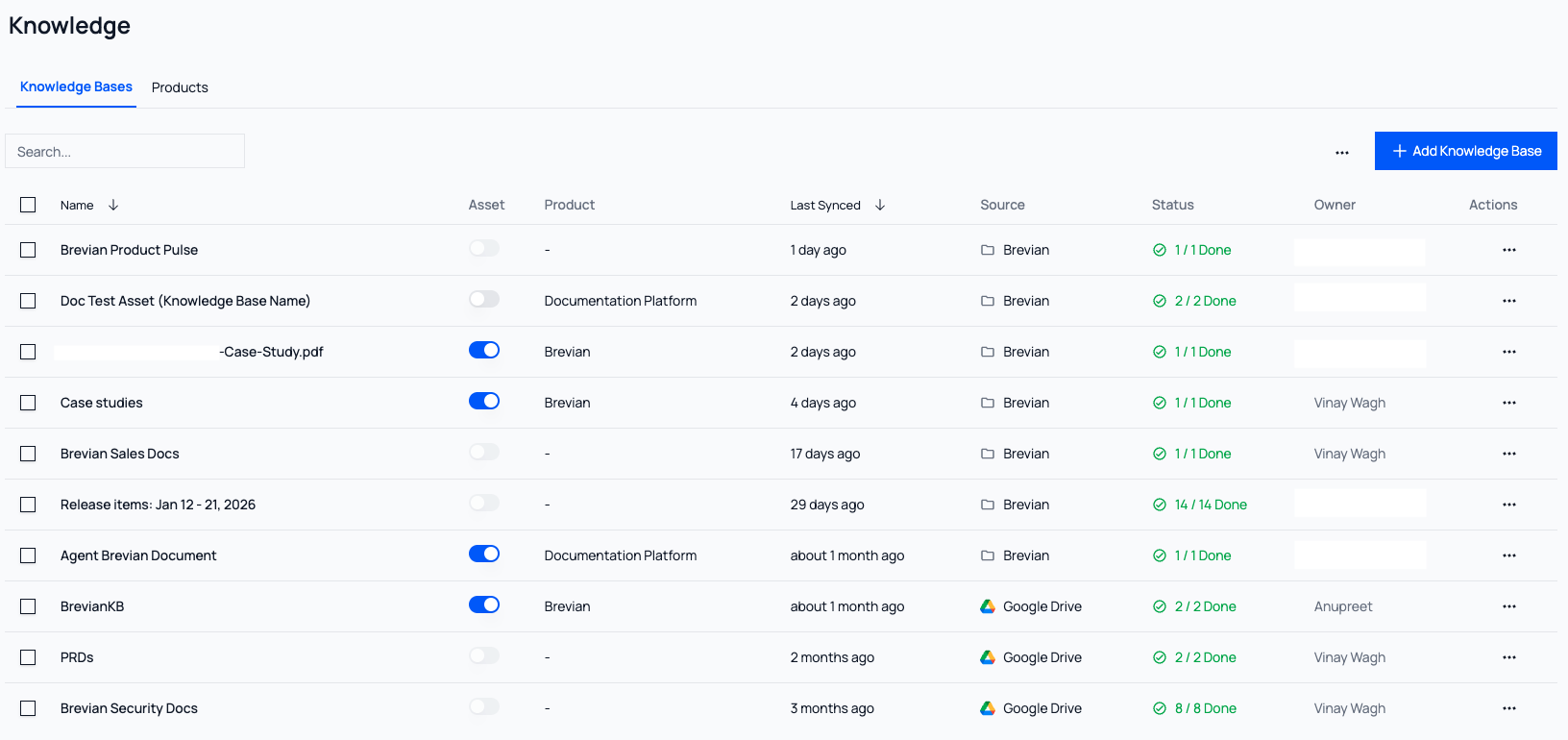
Knowledge refers to the collection of documents, content, and information your organization uses to support sales conversations and decision-making.
This includes internal materials like product documentation and strategy notes, as well as customer-ready resources such as presentations, case studies, and follow-up content.
Additionally, Knowledge is the page in the Brevian app where you can import and manage integrated content:
What is a knowledge base?
A knowledge base refers to internal-facing content, such as product documentation, battlecards, cheat sheets, and training materials. Any information that should be available to an AE to effectively position the product and handle both technical and sales objections should be added as a knowledge base.
Why should I integrate a knowledge base with Brevian?
Once you upload knowledge bases to Brevian, the app can instantly surface accurate answers, recommended content, and key insights to reps before, during, and after sales conversations. This transforms your internal materials into real-time sales guidance, helping teams move faster, stay consistent, and engage buyers with greater confidence.
Knowledge base content is surfaced in the following app pages:
- Meeting Prep: Surfaces as helpful resources for reps to review and prepare before speaking with a prospect.
- Call Analysis: Highlights relevant knowledge and demonstrates how objections could have been handled more effectively.
- Reports: Provides supporting context and insights when conducting deeper dives into specific products.
Which knowledge tools are supported for integration with Brevian?
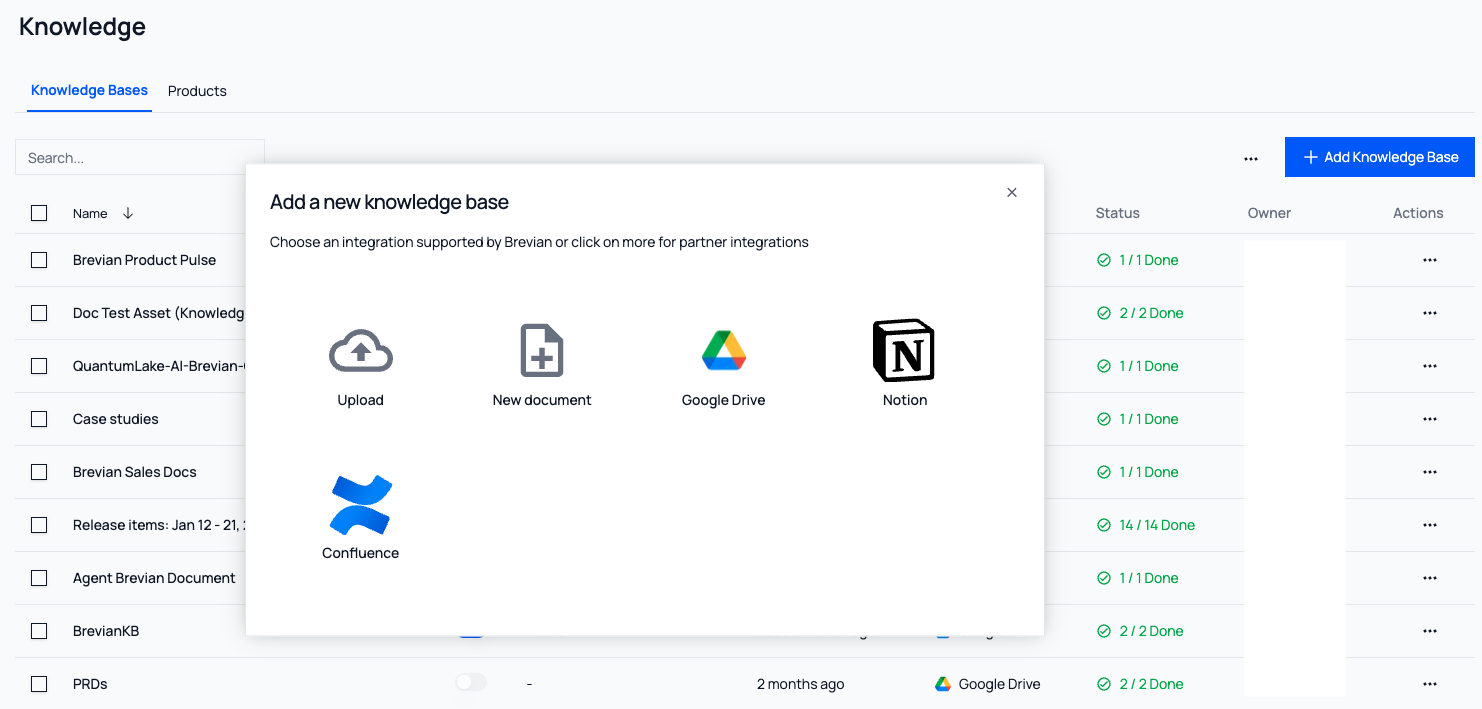
Brevian supports integration with Google Drive, Notion, and Confluence. Additionally, you can upload local files or create documentation within the integration's menu.
NOTE: Only admin users can add or remove knowledge bases and products.
Review the following considerations:
| Tool | Considerations |
|---|---|
| Google Drive | There are two integration methods: - OAuth 2.0: Connect using your Google account and select which files or folders Brevian should index. - Service Account Integration: Connect using a Google Cloud service account key for large-scale or IT-managed access. You can only integrate files you have access to, including shared files. |
| Notion | There are two integration methods: - OAuth 2.0: Connect using your Notion account and select which content Brevian should index. - Internal Integration Secret: Connect using a Notion API secret for IT-managed access. You can only integrate files you have access to, including shared files. |
| Confluence | You must have your Confluence credentials available to connect. You can only integrate files you have access to. |
How do I integrate a knowledge base with Brevian?
In the Brevian app, go to Knowledge > Knowledge Bases, then select + Add Knowledge Base, choose the method, and follow the on-screen instructions:
For detailed integration instructions, see Integrate knowledge bases.
What is an asset?
An asset is a type of knowledge base that the Account Executive can refer to in a customer-facing conversation, such as:
- Case studies
- One-pagers
- Pitch decks
- White papers
- Customer-ready PDFs or presentations
- Battle cards
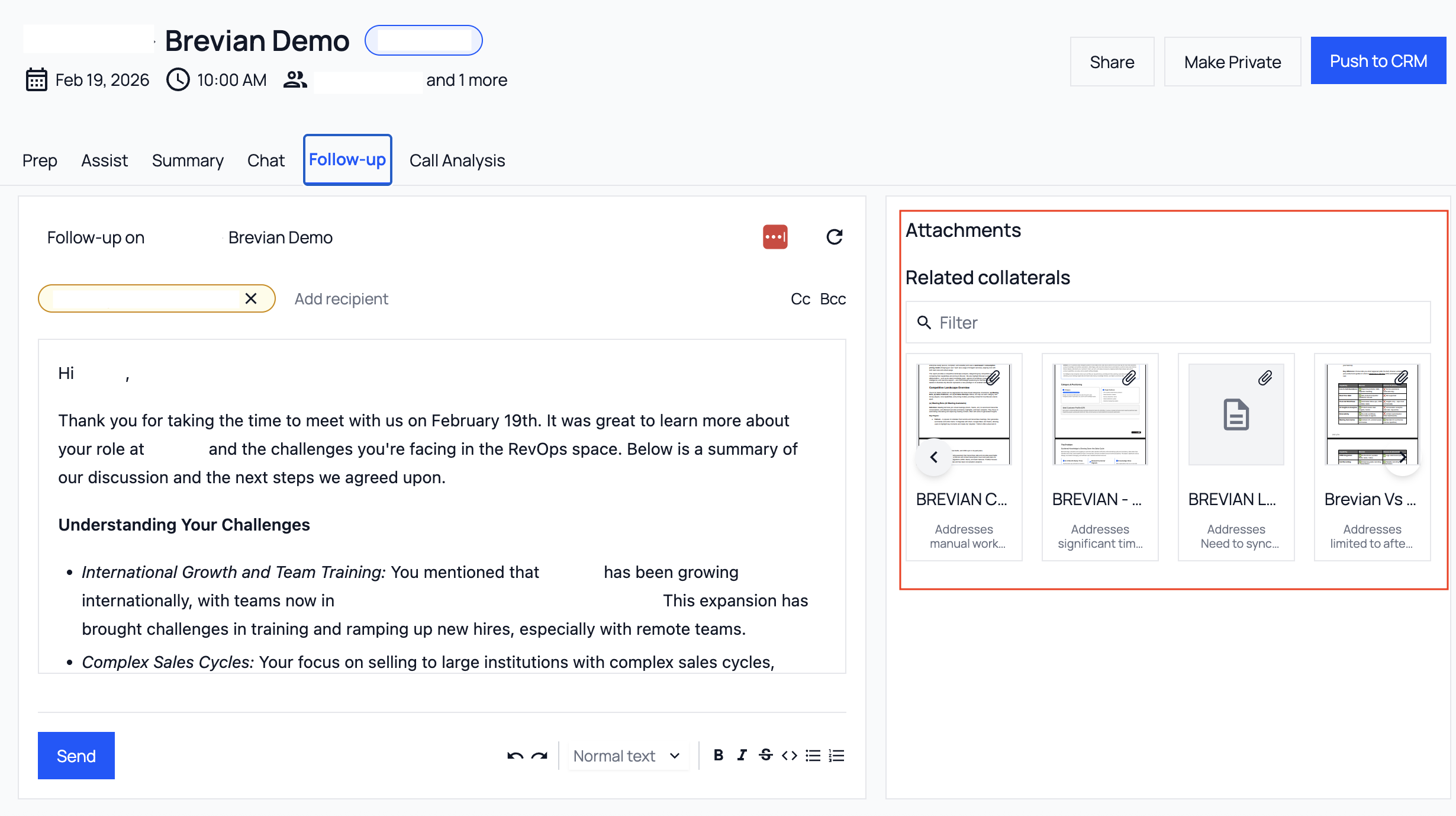
With the exception of battle cards, these assets are readily available in follow-up emails to be attached and sent. Additionally, these assets primarily power Live Assist.
Non-asset knowledge bases are primarily treated like product documentation, technical specs, API docs, or detailed architectural diagrams. This knowledge helps build understanding within the Brevian app, but they may not be the most effective documents to share with clients in discovery discussions.
How do I add an asset to the Brevian app?
An asset is a type of knowledge base. After you integrate a knowledge base, you can mark the knowledge base as an asset.
To mark a knowledge base as an asset:
- Create a product.
- Associate the knowledge base with the product.
- Mark the knowledge base as an asset.
To learn more, see High-level knowledge integration steps.
How do I add an asset to an email?
After a meeting, Brevian automatically drafts a follow-up email to meeting participants. Based on the topics discussed, Brevian will also display related assets that you can quickly attach to the email:
What is a product?
A product refers to a SKU or offering that has its own ICP and sales motion (with specialized discovery questions and positioning).
In Brevian, products are used to organize knowledge and assets around what your team sells.
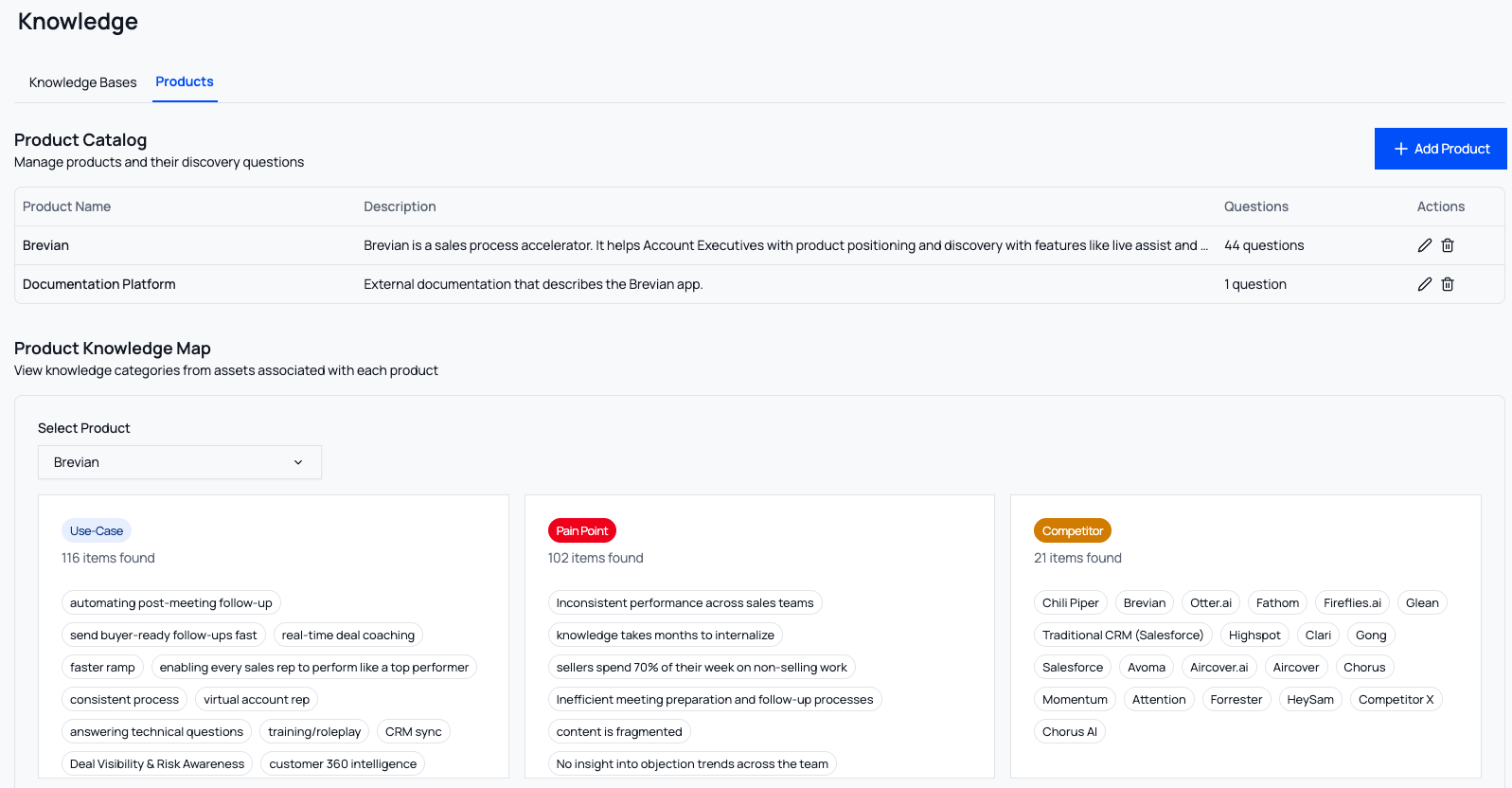
When assets are associated with a product, Brevian can interpret the information more effectively by categorizing content into the following categories:
- Use cases
- Pain points
- Competitors
- Objections
- Case studies
- Features
This structure improves how content is surfaced during meetings and how assets are recommended for follow-up emails:
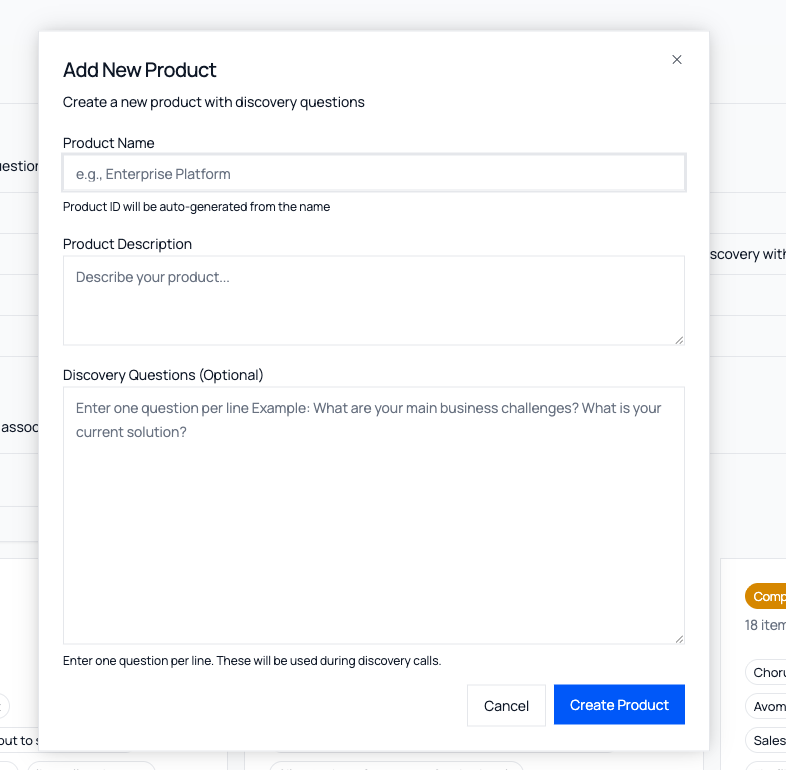
How do I create a product?
In the Brevian app, go to Knowledge > Products, then select + Add Product, and follow the on-screen instructions:
To learn how to create a product within the knowledge integration workflow, see High-level knowledge integration steps.