Admin
Use the sections in the Admin page to:
- Set preferences for meeting types that Brevian should join via the Admin Settings section
- Configure model providers via the Model Providers section
- Integrate your organization's CRMs via the Integrations section
- Create API keys via the API Keys section
- Invite and manage users via the Users & Groups section
Admin Config
Use this section to:
- Configure when meeting agents should attend meetings
- Configure which meeting participants should automatically receive a summary of the meeting
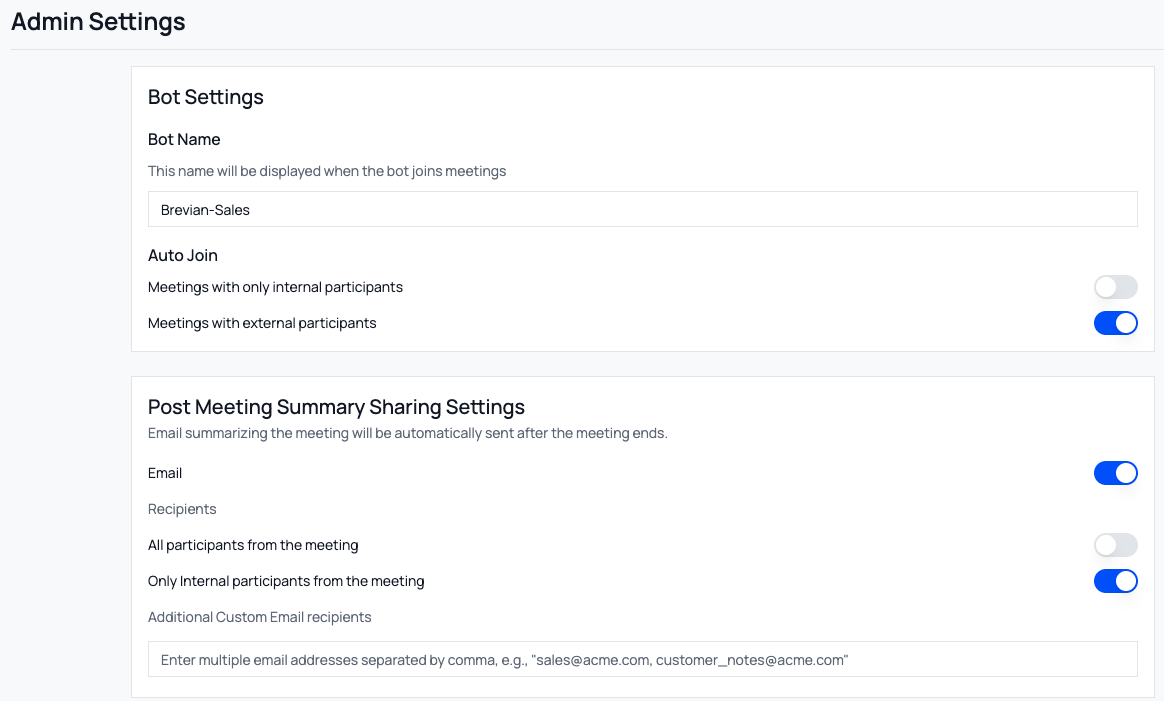
Review the following options for Bot Settings:
- For Bot Name, enter the display name for the bot, which will attend meetings as a muted participant.
- For Auto Join, configure if the bot should attend meetings with just internal participants and/or external participants.
- Internal participants refer to members of your organization who share the same email domain.
- External participants refer to individuals outside of your organization, such as potential customers.
- If you select both options, then the bot will attend all meetings.
Review the following options for Post Meeting Summary Sharing Settings:
| Setting | Description |
|---|---|
| Sends meeting summaries via email. When you enable this setting, additional settings will display. | |
| All participants from the meeting | Sends a meeting summary via email to internal and external meeting participants. |
| Only internal participants from the meeting | Sends a meeting summary via email to all internal meeting participants. Internal participants refer to meeting participants who are from the same organization as the meeting host. |
| Additional Custom Email recipients | Allows you to send meeting summaries to specific individuals, whether they attended the meeting or not. |
Image: Admin Config page
Model Providers
An AI model is the system that analyzes inputs and produces intelligent responses, which enables AI-powered features to work.
Currently, Brevian supports OpenAI.
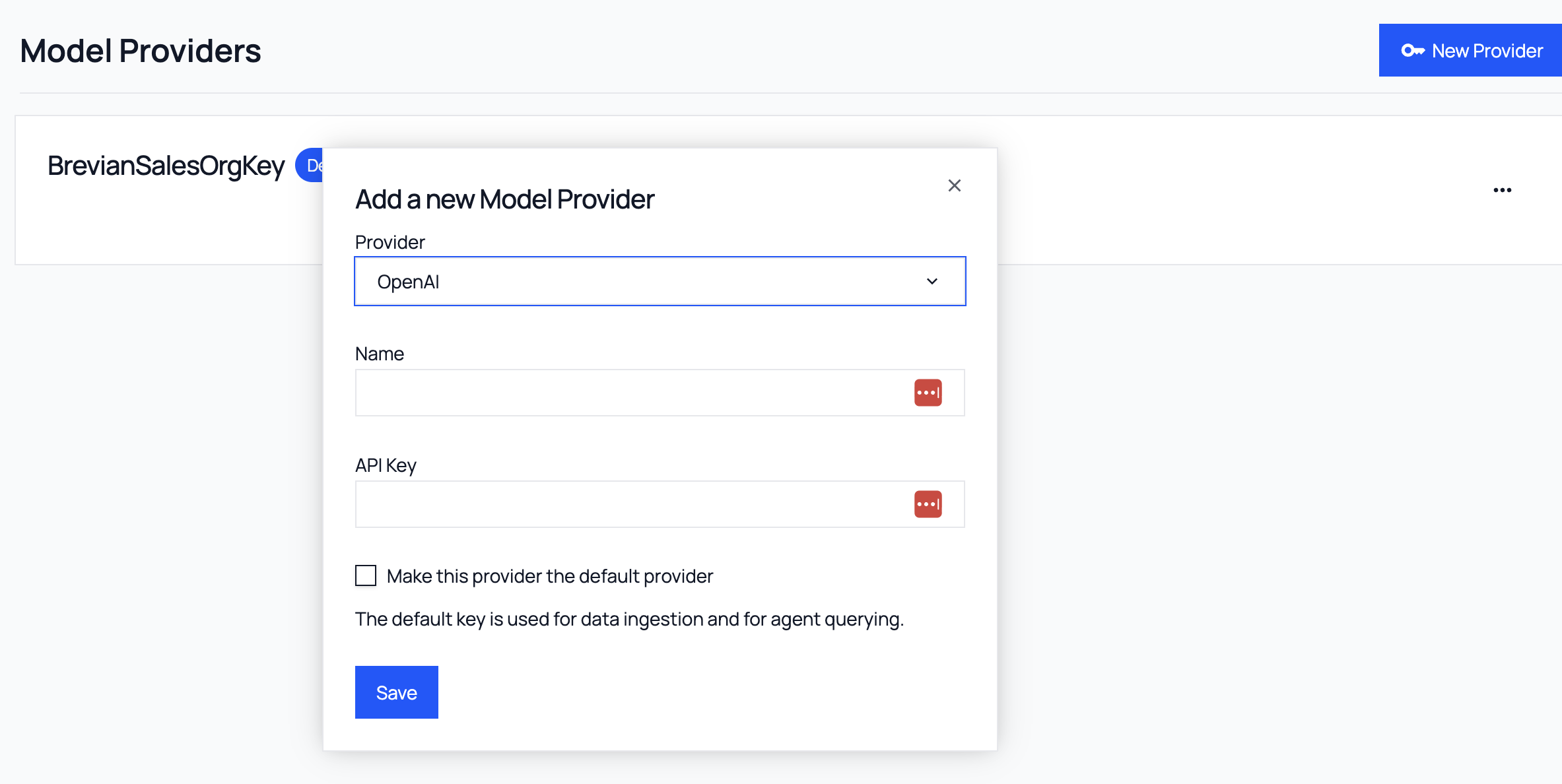
- In the Brevian app, go to Admin > Model Providers.
- Select New Provider.
- For Provider, OpenAI is selected by default.
- For Name, enter a descriptive name.
- For API key, enter your OpenAI API key.
- (Optional) Select this option to make this provider the default provider.
- Select Save.
Image: Model Providers page
Integrations (Connectors)
Integrating your organization’s CRM is required for Brevian to function. This connection allows Brevian to sync your accounts, opportunities, and contacts so it can learn your customers and understand your sales process. With this integration, your CRM will share account and opportunity data, as well as contact details. Brevian also stays up to date automatically. For example, when a new contact is added in your CRM, it becomes immediately available to Brevian.
With CRM access, Brevian can automate key sales workflows, such as linking meetings to opportunities and enriching your CRM with post-meeting insights. After a meeting, you can select the Push to CRM button on the meeting details page to send Summary, Action Items, and MEDDPICC insights directly to the selected CRM opportunity.
CRM integration also powers natural-language chat, allowing users to ask questions about customers, accounts, and opportunities conversationally through Brevian. In the Brevian app, users have access to two chat interfaces:
- One optimized for reviewing and asking about topics discussed in a meeting
- One designed for querying custom knowledge sources added by your organization's admin
Brevian currently supports integration with Salesforce and HubSpot.
Salesforce integration
Step 1: Learn about data exchanges
When you connect Salesforce to Brevian, specific data is exchanged to support insights and workflow automation.
Review the following table to understand Brevian's read and write access in Salesforce:
| Access type | Data exchange |
|---|---|
| Read | Account records from Salesforce |
| Read | Opportunity records associated with an account |
| Read | Task records associated with an account |
| Write | New tasks created in Salesforce |
| Write | Existing tasks updated in Salesforce |
| Read | Event records associated with an account |
| Write | New events created in Salesforce |
| Write | Existing events updated in Salesforce |
| Write | Opportunities created or updated for an account |
| Read | Contact records associated with an account |
| Write | Contacts created or updated for an account |
| Write | Contact roles created or updated for an opportunity |
Additionally, Brevian can update custom fields in Salesforce.
- For example, if your sales operations process requires MEDDPICC data to be mapped to specific custom fields, Brevian can support that request.
- To perform this action, contact Brevian Support.
Step 2: Integrate Salesforce with Brevian
Step 1: Create a connected app in Salesforce
- In your Salesforce account, go to Setup, and then select Open advanced settings.
- In Quick Find, search for App Manager.
- Select New Connected App, and then complete the missing fields:
- For Connected App Name, enter Brevian Integration or your preferred name.
- For API Name, enter Brevian_Integration or your preferred API name.
- For Contact Email, enter your email address.
Step 2: Configure OAuth settings
- Under API (Enable OAuth Settings), select Enable OAuth Settings.
- For Callback URL, enter
https://app.brevian.ai/admin/connectors.- Verify the URL for the environment you're setting up.
- Under Selected OAuth Scopes, select all entries, and then select Add.
- Select Require Secret for Web Server Flow.
- Select Require Secret for Refresh Token Flow.
Step 3: Set up certificate
- In a command line, run the following command to generate a new certificate:
➜ openssl req -x509 -nodes -days 365 -newkey rsa:2048 -keyout server.key -out server.crt - In Salesforce, select Use digital signatures, and then upload the generated server.crt.
Step 4: Authorize Brevian
- In the Policies section, select Admin Approved users are pre authorized.
- Select the policies or profile that will be used for integrating with Brevian.
Step 5: Create integration in Brevian
- In the Brevian app, go to Admin > Integrations.
- For Salesforce, select the plus icon, and then complete the missing fields:
- Enter your Client ID, Client Secret, and Salesforce User Email; upload the private key that was created when you generated your certificate; and then select the Environment.
- Select Connect.
Step 3: Create a dedicated Salesforce user for Brevian
Overview
Brevian’s Salesforce integration must use a dedicated Salesforce user. This user represents the Brevian application, not an individual employee, and is used to log all activity sent to Salesforce, ensuring clear audit trails while avoiding dependency on an individual employee account.
Step 1: Create a new Salesforce user
- In Salesforce, create a new user.
- Enter a recognizable name for the user, such as Brevian App User.
- Use an email address that is monitored, but not tied to a specific employee.
Step 2: Assign permissions and policies
- Apply the same roles, permissions, and policies as the currently configured Salesforce integration user.
- Verify the new user has access to all required objects and actions used by Brevian.
Step 3: Update the Salesforce certificate
- If your Salesforce setup uses a certificate that includes user or email information:
- Generate a new certificate using the new Salesforce user.
- Upload the updated certificate to Salesforce.
Step 4: Reconnect Salesforce in Brevian
- In the Brevian app, go to Admin > Integrations.
- Open the Salesforce integration.
- Reconnect the integration using:
- The new Salesforce user’s email address
- The updated certificate
HubSpot integration
Learn about data exchanges
For HubSpot, this integration allows Brevian to read relevant company, deal, and contact data from HubSpot, and to update MEDDPICC fields on deals based on meeting insights.
When you connect HubSpot to Brevian, specific data is exchanged to support insights and workflow automation.
Review the following table to understand Brevian's read and write access in HubSpot:
| Access type | Data exchange |
|---|---|
| Read | Company records from HubSpot |
| Read | Deals associated with a company |
| Read | Individual deal details |
| Read | Contacts associated with a company |
| Write | MEDDPICC data written to HubSpot deals based on meeting insights |
| Read | Available MEDDPICC-related fields on HubSpot deals |
| Read | Completion and status of MEDDPICC fields for a deal |
Additionally, Brevian can update custom fields in HubSpot.
- For example, if your sales operations process requires MEDDPICC data to be mapped to specific custom fields, Brevian can support that request.
- To perform this action, contact Brevian Support.
Integrate HubSpot with Brevian
- In the Brevian app, go to Admin > Integrations.
- For HubSpot, select the plus icon, and then enter your Private App Token.
- Select Save Token.
API Keys
Create an API key to enable programmatic access to one or more Brevian agents and integrate them into external applications. Each API key can be configured to:
- Grant access to specific agents
- Set a maximum number of requests
- Restrict usage to approved IP addresses
API keys allow you to embed a Brevian agent into another system (internal tools, external agent workflows, or custom applications) by sending natural language queries through the API. The agent will generate answers using its configured knowledge sources, and return the results in the API response.
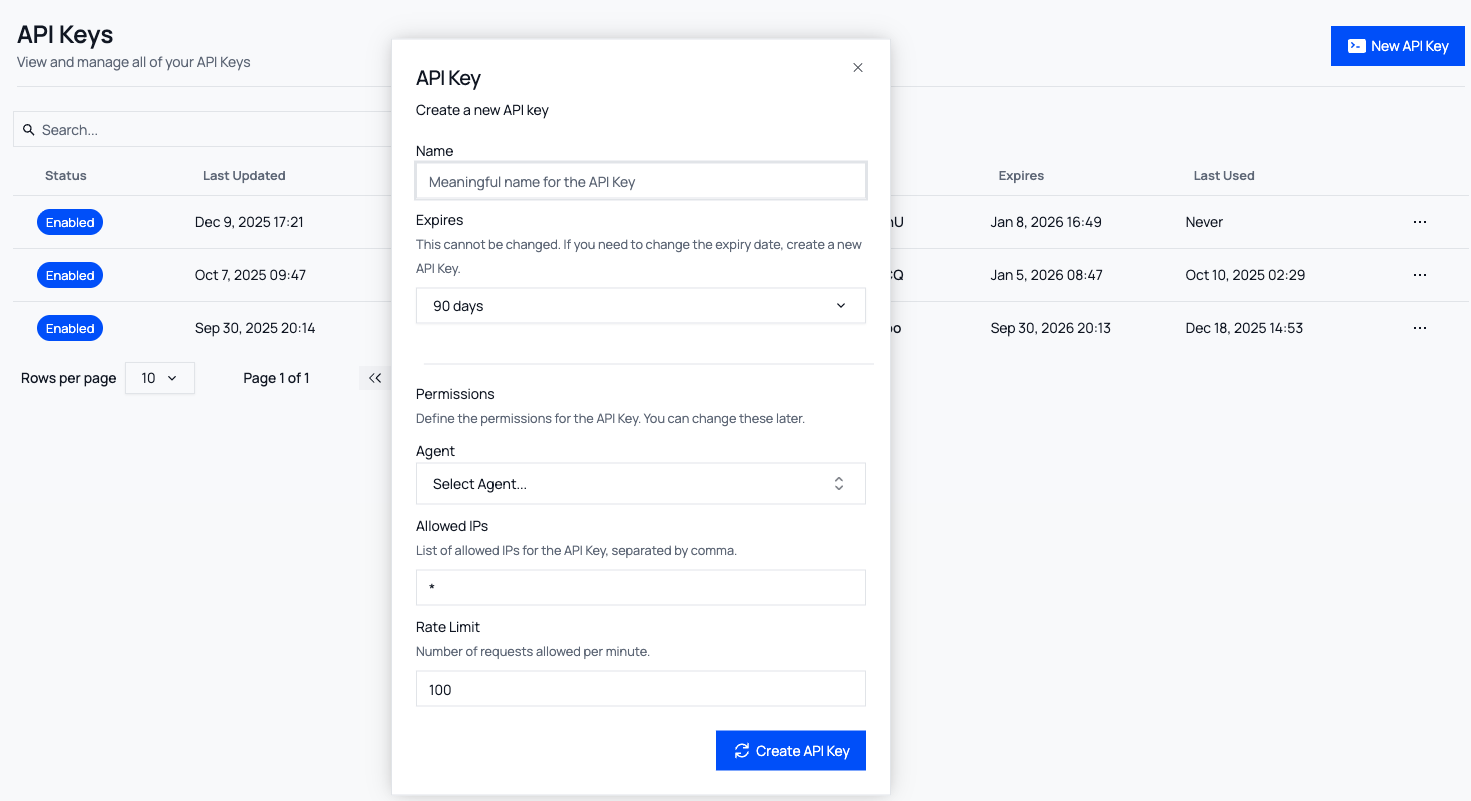
Image: API Keys page
Create an API key
- In the Brevian app, go to Admin > API Keys.
- Select New API Key.
- Complete the missing fields:
| Field | Description |
|---|---|
| Name | Enter a descriptive name for the API key. |
| Expires | Select when the API key should expire. After you create the API key, you cannot change this setting. |
| Agent | Select an agent to assign to this API key. |
| Allowed IPs | Enter the IP addresses that can make requests with this API key. This field restricts where the API key can be used from. For multiple IP addresses, use a comma to separate each address. |
| Rate Limit | Enter the maximum number of requests allowed per minute. This field restricts how frequently the API key can be used. When the limit is reached, additional requests are rejected. |
- Select Create API Key.
- In the window that appears, copy and securely store the API key. Once you close the window, you'll be unable to retrieve the key.
- Review the curl, Python, and Typescript snippets with your key already embedded. These snippets:
- Indicate that the API key is ready to be used
- Showcase how authentication works
- Display the request structure
- After you have copied the API key and reviewed the snippets, select Acknowledge to close the window.
Manage API keys
You can edit, disable, enable, or delete API keys.
- You can't edit the expiration date for an existing API key.
- In the Brevian app, go to Admin > API Keys.
- Select the ellipses next to the desired API key, and then select Edit, Disable, Enable or Delete.
| Action | Instruction / description |
|---|---|
| Edit | For Edit, make your desired changes, and then select Save Changes. When you save your changes, the Last Updated column will update. |
| Disable | For Disable, confirm your choice, and then select Disable. When you save your changes, the Status column will update; however, the Last Updated column will not update. |
| Enable | For Enable, confirm your choice, and then select Enable. When you save your changes, the Status column will update; however, the Last Updated column will not update. |
| Delete | For Delete, confirm your choice, and then select Delete. When you save your changes, the API key entry in the table will be removed. |
View existing API keys
- In the Brevian app, go to Admin > API Keys.
- Review the following table to understand the API Keys section.
- You can customize the table by selecting a column header, and then selecting a filter option.
- This table doesn't display deleted API keys.
| Field | Description |
|---|---|
| Status | Indicates if the API key is Enabled or Disabled |
| Last Updated | The time and date when the API key was last edited. This column doesn't update if you enabled or disabled the API key. |
| Name | The unique name of the API key. |
| Owner | The Brevian user who created the API key. |
| Key | The reduced / truncated version of the API key. |
| Expires | The expiry date of the API key. |
| Last Used | The time and date when the last request was made. |
Users & Groups
Create and invite a user
- In the Brevian app, go to Admin > Users & Groups.
- Select Add members.
- Complete the missing fields:
| Field | Description |
|---|---|
| Enter the new user's email address. This is the only required field. You can select Invite without completing the rest of the settings. | |
| Name | The invited user will complete this field. |
| User Role | Brevian has two primary roles, User and Admin. The user role is designed for Sales Reps and SDRs. A user can engage with agents, but cannot configure or manage agents, knowledge sources, or integrations. The admin role is designed for RevOps, Sales Enablement, and Executives. An admin owns and manages configurations in the Brevian app, such as creating and configuring agents; adding and managing knowledge sources; setting up integrations; and more. |
| Manager | Selecting a manager for a user allows the manager to query and obtain organization-level insights across their teams. With the permission to view all meetings associated with their users, managers can access the meeting details tab, including the chat feature, to locate useful team insights. Additionally, in the meeting table (list) view, managers can use a variety of filters (Meeting Owner, Deal, Meeting Date, Participants, Source) to search through past and future meetings. |
| Persona | Select the job type or role for the new user. Analytics and data from meetings will cater to the user's persona. |
- Select Invite.
- The newly created user will receive an email to complete the invitation process.
Manage users
- In the Brevian app, go to Admin > Users & Groups.
- Select the ellipses for the corresponding user, then select Edit or Remove, and then make the desired changes.