Chat
Note: In the Brevian app, there are two chat interfaces, the Chat tab within a meeting details page, which focuses on topics discussed in a meeting, and the standalone Chat page, which focuses on default and custom knowledge sources. This document focuses on the standalone Chat page, which can be accessed from the left-side nav.
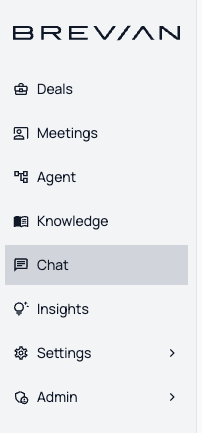
The Chat page provides a conversational interface that enables sales reps to interact with AI-powered agents configured with specific knowledge sources. You can think of this page as a custom GPT whose responses are based on the content you provide, such as CRM data, sales enablement content, meeting conversations, and other sales-related resources.
These agents go beyond simple question-and-answer interactions. They reason over connected data sources, retrieve relevant information, and maintain conversational context to deliver more accurate and helpful responses.
Sales reps can use the chat as a learning and enablement tool to improve product knowledge, sharpen sales skills, and quickly access deal-specific insights. In short, the Chat page is a conversational layer built on top of your sales data.
- For example, you can chat with the agent to perform a win–loss analysis or conduct competitive research.
While you can create agents with custom knowledge sources for specific use cases, Brevian also provides an out-of-the-box agent to help you get started quickly.
Default (out-of-the-box) agent
By default, Brevian offers the Intelligence Agent, which leverages integrated data sources to deliver tailored responses.
This default agent:
- Handles a wide range of queries, including deal-specific, competitor-related, and rep-specific questions
- Integrates meeting conversations, data from CRM integration, sales enablement resources, and case studies to generate responses
- Can access the web to provide more comprehensive answers
- Answers questions such as:
- “Which competitors came up in the previous month?”
- “What are the key insights from recent meetings?”
Create a chat
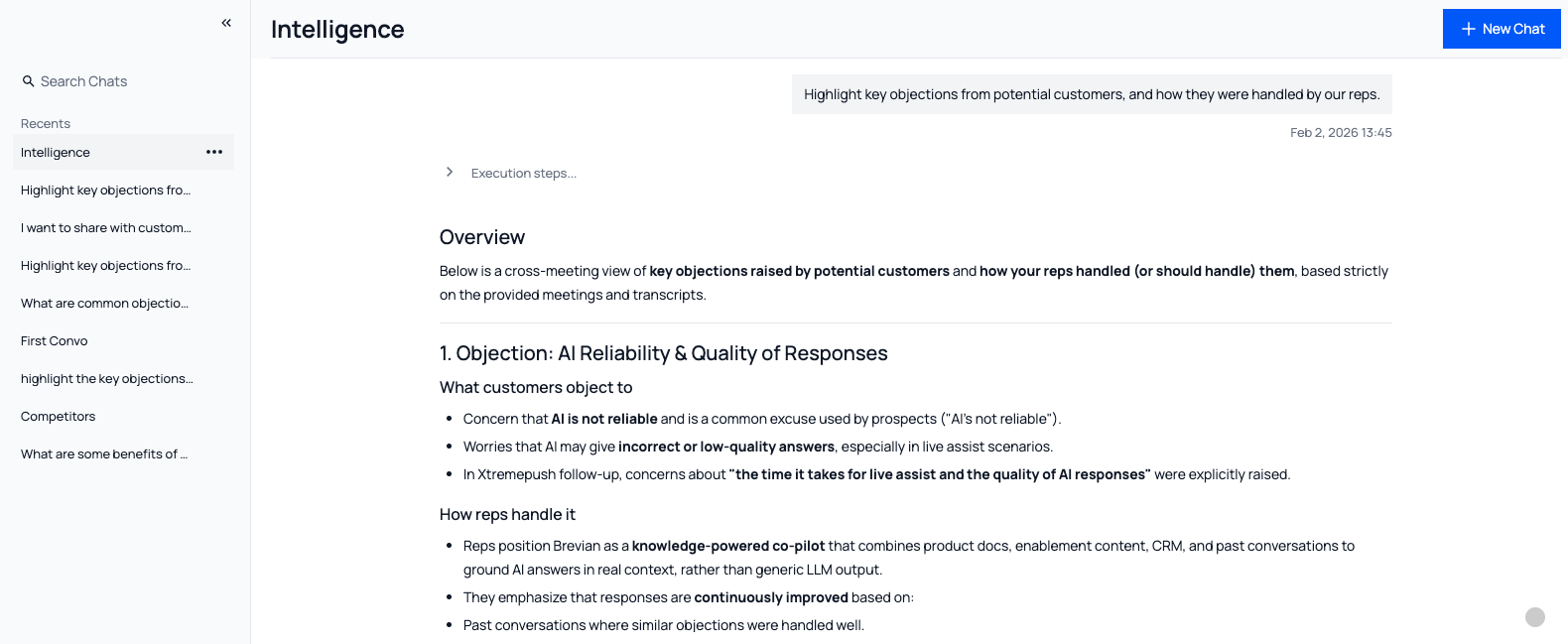
- In the Brevian app, go to Chat.
- Select + New Chat, and then select the desired agent, such as Intelligence.
- Enter questions and begin interacting with the agent.
- Responses are generated based on the agent’s integrated knowledge sources, such as knowledge bases and CRM data.
Image: Sample chat conversation
Engage with chat responses (view sources, provide feedback, copy responses)
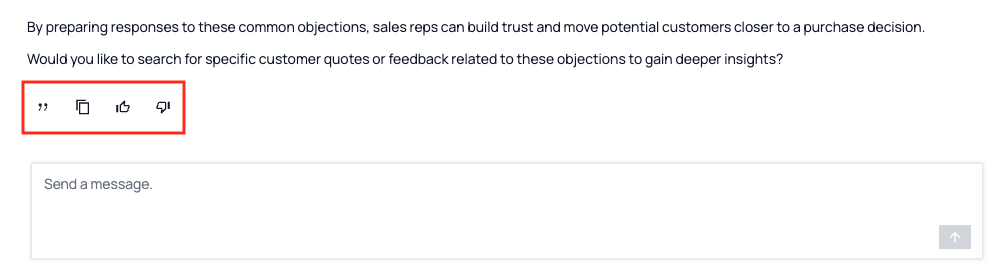
Below the chat's response, there are icons that you can select to perform the actions described below:
| Action | Description |
|---|---|
| View source information | To view the resources that the agent is pulling information from, select the quotation marks icon. A popup displays snippets of the referenced content. To open the full file in a new tab, select the external link icon. |
| Copy response | Copy the entire chat response by selecting the copy icon. |
| Provide positive feedback | Select the thumbs up icon. Once you provide positive or negative feedback, you can't revert your selection. |
| Provide negative feedback | Select the thumbs down icon. A popup displays where you can provide more detailed feedback. Once you provide positive or negative feedback, you can't revert your selection. 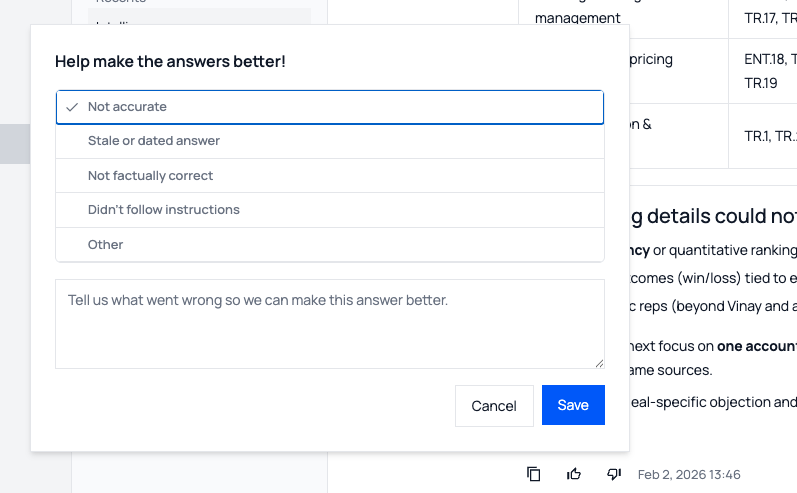 |
Update or remove a recent chat
You can update the name of the chat or remove a chat from view.
- In the Brevian app, go to Chat.
- Under Recents, locate the desired chat, and then select the corresponding ellipses.
- Select Rename or Remove, and then follow the on-screen instructions.
- Renaming a chat only updates the chat header. The name listed under Recents won't update until you refresh the screen.