Meetings
In the Brevian app, you can use the Meetings page to perform a variety of pre- and post-meeting actions, such as:
- Syncing your calendar and viewing previous and upcoming meetings
- Adding a meeting agent to your upcoming meetings
- Accessing insights after a meeting, including summaries, follow-up tasks, analyses, and more
- Sending follow-up emails with detailed notes pulled from the meeting agent
View meetings
The Meetings page contains two different views: calendar view and table view.
Calendar view
The calendar view displays a weekly view of your meetings.
- For a previous meeting that included the Brevian agent, you can select the calendar entry to view meeting insights.
Image: Calendar view of meetings
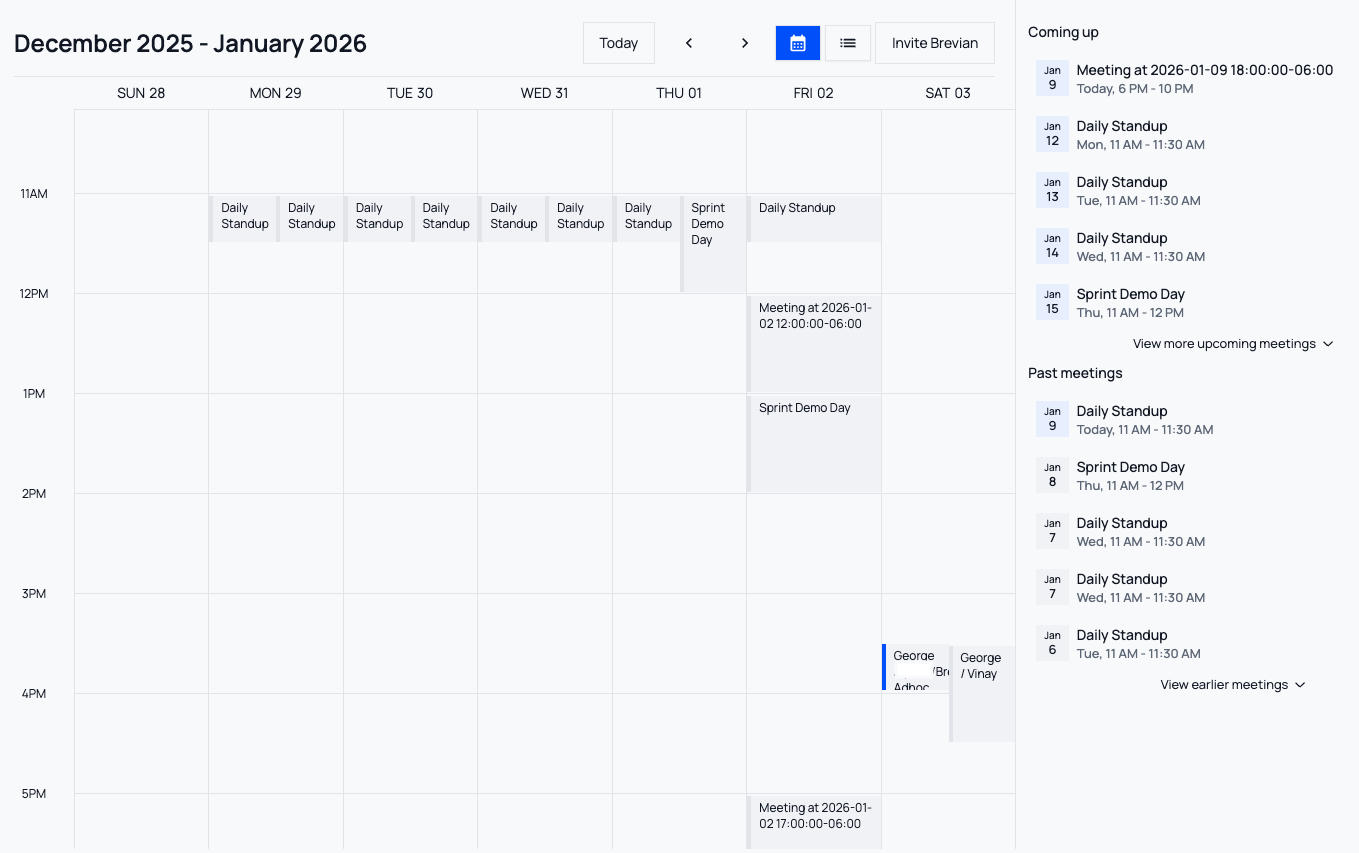
Table view
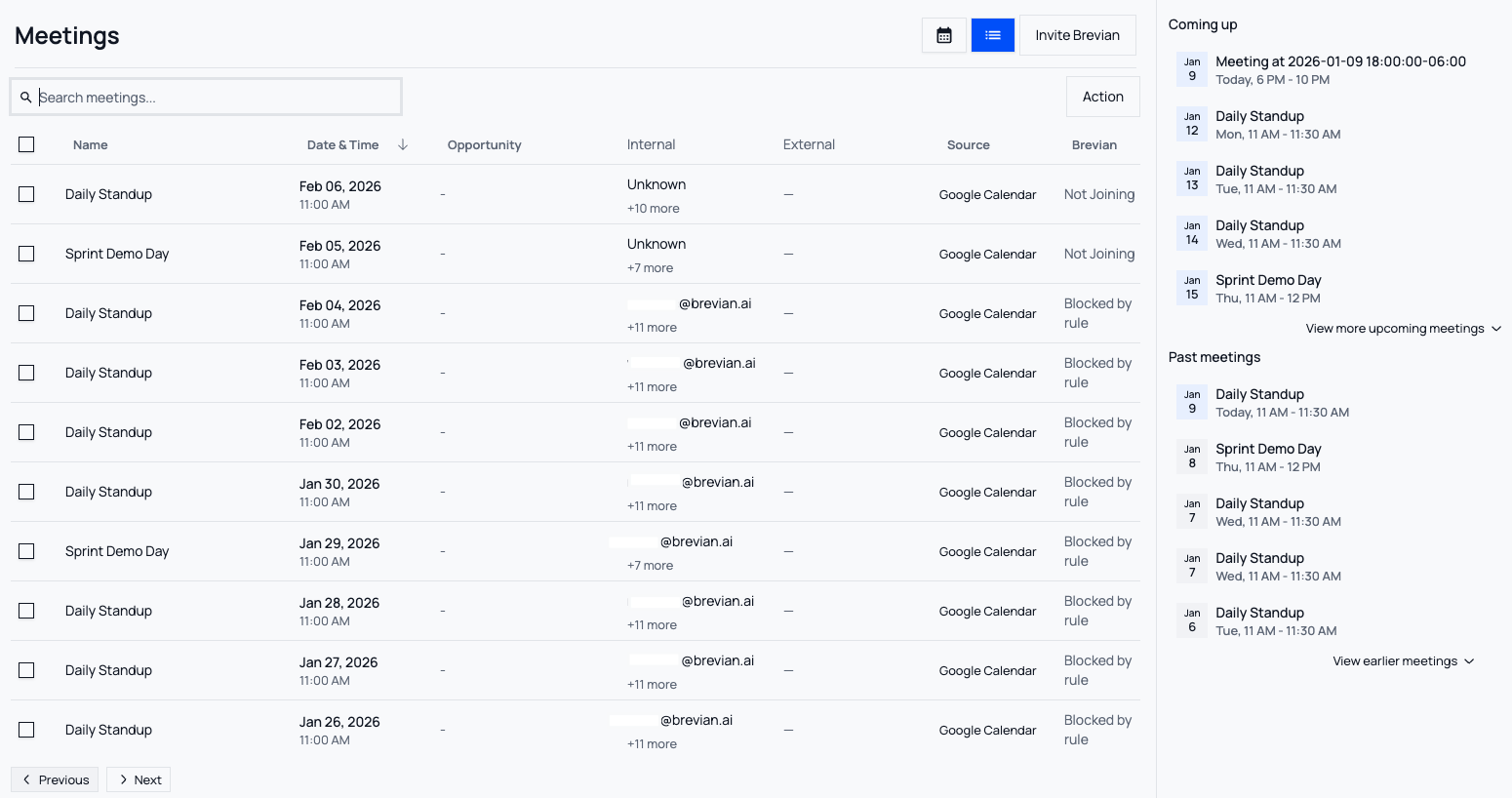
The table view (or list view) displays a chronological list of meetings, which can display in ascending or descending order.
- In this view, you can search for and filter meetings based on the meeting name.
- You cannot search for meetings based on attendees or other criteria. The search function only matches against the name of the meeting.
- You can also perform bulk actions against your meetings:
- For previous or upcoming meetings, you can assign the meeting to an opportunity in your CRM.
- Selecting an opportunity allows you to push meeting data from Brevian over to your CRM, as well as to add meetings for opportunities. To learn more, see Push meeting data to CRM.
- For upcoming meetings, you can add the Brevian agent.
- For upcoming meetings, you can remove the Brevian agent.
- For previous or upcoming meetings, you can assign the meeting to an opportunity in your CRM.
- You can filter for meetings based on Meeting Owner, Deal, Meeting Date, Participants, and Source.
Image: Table (list) view of meetings
Access meeting data
When a meeting has ended, the Brevian app updates with data and insights from the meeting.
- In the Brevian app, select Meetings.
- Select the desired meeting, and then you'll be redirected to the meeting details page, where you can explore information across the following meeting detail tabs: Summary, Chat, Follow-up, and Call Analysis.
- Review the sections below to understand the insights available across the meeting detail tabs.
- Next to the meeting name, select Opportunity Not Associated, and then select the desired opportunity from your CRM.
- Selecting an opportunity allows you to push meeting data from Brevian over to your CRM, as well as to add meetings for opportunities. To learn more, see Push meeting data to CRM.
- While we highly recommend that you select an opportunity for you meeting, Brevian attempts to auto-sync with meetings in your CRM. To learn more, see Automatic opportunity association logic.
Summary tab
This tab displays a recording of the call, along with a transcript.
- In the transcript, you can select a time and the recording will update to that moment in the meeting.
For deeper meeting insights, review the following sections and headers:
| Section / header | Description |
|---|---|
| Call Summary | In the Summary section, this header provides an overview of the meeting. |
| Key Topics of Discussion | In the Summary section, this header displays noteworthy subjects that were discussed in the meeting. To watch in the recording when a comment was made, hover over the desired comment, and then select the Play icon. The meeting recording will update to when that discussion took place. |
| Next Steps | In the Summary section, this header displays discussion points about what will take place after the meeting ends, such as action items, follow-up conversations, emails to send, etc. To watch in the recording when a comment was made, hover over the desired comment, and then select the Play icon. The meeting recording will update to when that discussion took place. |
| Action Items | This section displays follow-up tasks that were discussed in the call, organized by Task and Assignee. Select the Trash icon to remove the action item. To watch in the recording when a comment was made, hover over the desired comment, and then select the Play icon. The meeting recording will update to when that discussion took place. |
| MEDDPICC | This section displays and maps summary versions of customer-specific insights to the relevant MEDDPICC step. Fields are configurable and can be updated. If the meeting didn't include relevant insights, then the field will be blank; however, you can manually update blank fields. |
| Add Sections | Create unique sections to display specific notes or data points from the meeting. To learn more, see Create custom sections. |
| Transcript and Talk Times | To complement the available recording of the meeting, you can review a full transcript. In the Transcript, select any timestamp to jump the recording directly to that moment. The Talk times tab shows the percentage of speaking time for each internal participant. |
Create custom sections
In addition to the default sections and headers in the Summary tab, you can create custom sections.
Custom sections allow you to define prompts that run after each meeting to extract structured information. You can create a one-time custom section for a specific meeting, or you can create default custom sections that will be applied to all future meetings.
- For example, a sales rep could create a section with a prompt configured to extract only competitor names and related discussion points from meeting transcripts.
- Select Add Sections.
- Select New Section.
- For Title, enter a descriptive name for the section.
- For Detail, update the prompt with instructions on what information to pull and how to display it.
- For example, you could enter, "Add information regarding competitors that the potential customer mentioned. To display this information, create a table with three columns where the first column lists the competitor that was mentioned, then the second column displays the meeting participant who mentioned the competitor, and then the third column displays information about the competitor that was mentioned."
- Submit the prompt, and then review the output.
- If you like the output, select Add Section to include this insight in the Summary tab.
- If you don't like the output, update the prompt, and then submit again.
- After you add the section, you can hover over the panel, and then select the ellipses to:
- Make Default
- Remove
- Edit
Chat tab
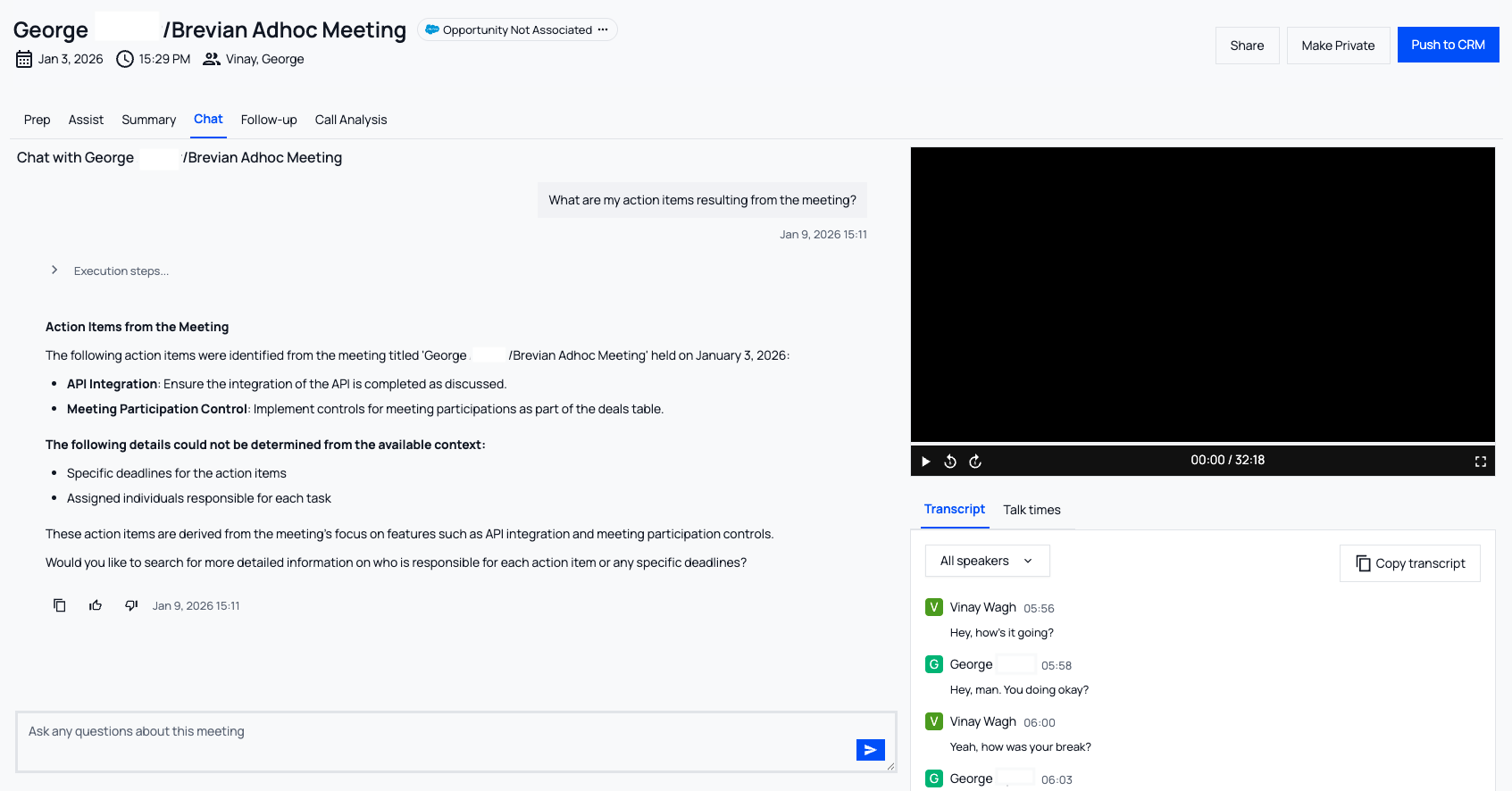
This tab provides access to a chat interface for submitting one-time, ad-hoc questions to the meeting agent. The chat session is conversational by design, maintaining short-term context within the active session to support follow-up questions and answers. The chat functions like a single-use conversation and is based on the topics discussed in the selected meeting.
Chat queries can reference meeting participants and transcript content.
- For example, you could enter, "What did John say about using Zoom for transcripts?”
- Or, "Who did Joe recommend as a rep who would champion our products?"
Note: Chat conversations are not saved. Navigating away from the Chat tab will clear the current chat session and erase previous messages.
In addition to the chat feature, this tab also includes the meeting recording and the meeting transcript.
Image: Chat tab
Follow-up tab
Use this section to auto-generate emails for internal and external meeting participants. You can use the prompt to provide instructions on how to craft the email. You can create emails that include meeting summaries, next steps, or additional information for unanswered questions.
Based on the topics discussed and the configurations of the meeting agent, relevant assets are displayed, which you can easily attach to an email.
Note: Assets pulled from Confluence, Notion, or Google Drive cannot be added as attachments.
- In the Brevian app, go to Meetings.
- Select the desired meeting.
- Select Follow-up.
- For Email instructions, enter instructions for generating the email.
- For example, you can write, "Create an email to send my boss about the high-level topics discussed, as well as any action items. Make the tone informal and positive. For lists, use bullet points."
- Select the Enter icon to populate the email draft.
- Review the generated email draft.
- You can make edits directly in the editor, or you can revise your prompt, and then create another draft.
- Based on the meeting topic or the assigned agent, relevant assets will display. To add an asset to an email, select the corresponding Paper Clip icon for the desired asset.
- Review and update the email recipients.
- Select Send.
Image: Follow-up tab

Call Analysis tab
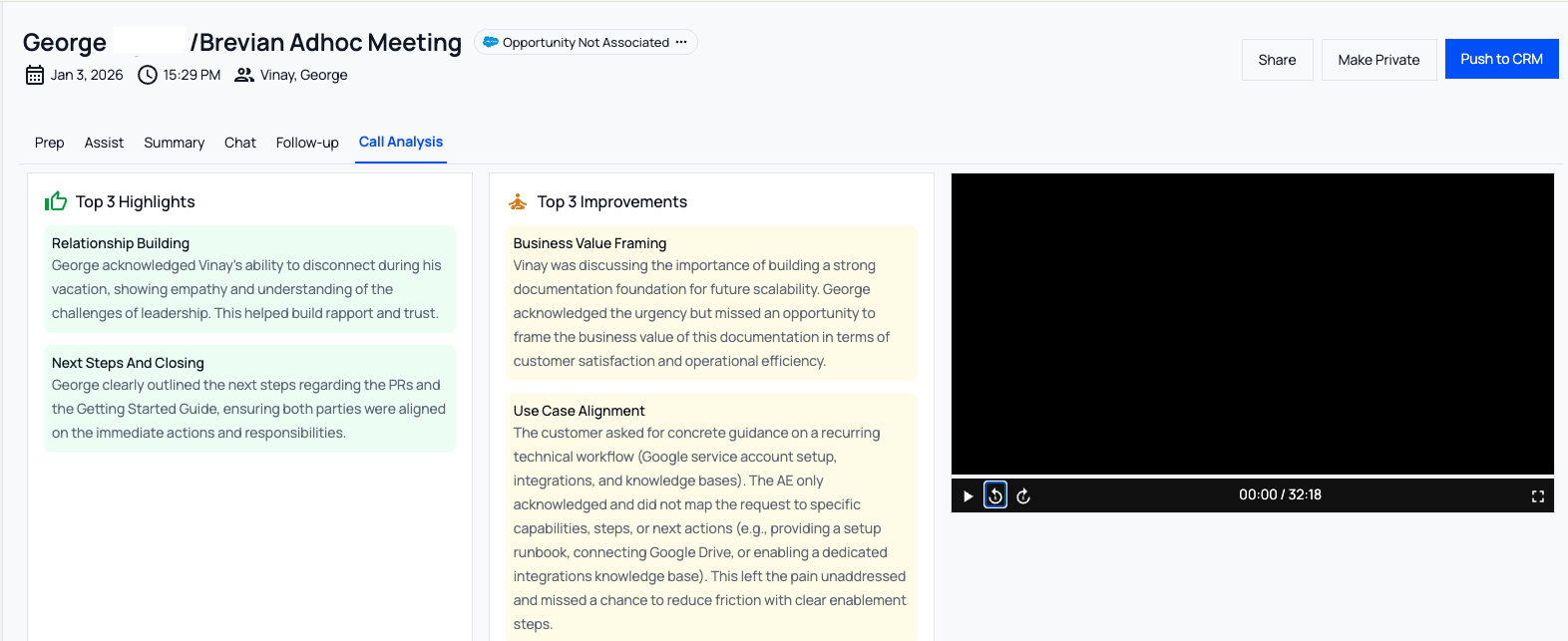
This tab displays an evaluation report for how internal participants (sales reps) handled the meeting. Consider this tab as a virtual sales coach that can identify areas of improvement. The report is organized into predefined evaluation dimensions. Each dimension is scored on a scale from 1.0 to 5.0, where:
- 1.0 indicates a significant opportunity for improvement
- 5.0 indicates a strong performance
Note: Some meetings may not contain relevant or enough feedback for certain dimensions. As a result, not all meetings include scores for every dimension.
Each evaluated dimension includes:
- A summary of what the customer said
- How the rep responded
- The meeting agent’s evaluation of the response, including the reasoning
- A recommended alternative response
- A recommendation for improvement
Brevian evaluates internal participants based on the following dimensions:
- Sales-related dimensions:
- Discovery
- Objection Handling
- Next steps and closing
- Relationship building
- Business value framing
- Product-related dimensions:
- Product Knowledge
- Product Messaging
- Product Positioning
- Use Case Alignment
- Handling Technical Objections
In addition to these dimensions, this tab also displays Top 3 Highlights, where key positive moments from the meeting are displayed and Top 3 Improvements, where top areas of optimization are displayed.
- To watch in the recording when a comment was made, hover over the desired comment, and then select the Play icon. The meeting recording will update to when that discussion took place.
Image: Call Analysis tab
Push meeting data to a CRM
After a meeting, you can push insights from the Summary section, the Action Items section, and/or the MEDDPICC section to your CRM.
- For MEDDPICC, insights are merged across all meetings and aligned with CRM opportunity records to ensure a consolidated, up-to-date view.
- In the Brevian app, go to Meetings.
- Select the desired meeting.
- In the top right, select Push to CRM.
- Select the desired opportunity from your CRM.
- Select and modify the desired information to send.
- For Action Items, you can select the ellipses to update or remove the listed action item.
- For MEDDPICC, you can double-click on a field to update the content.
- Insights from Summary cannot be modified.
- Select Push Selected.
Automatic opportunity association logic
Brevian attempts to automatically associate meetings with the most relevant CRM opportunity using the following logic:
- Match external meeting attendees and their email addresses to contacts listed in the opportunity.
- If multiple matches exist, Brevian selects an open opportunity, not a closed one.
- If multiple open opportunities exist, Brevian selects the opportunity with the closest close date.
- If the close date is missing or similar across multiple opportunities, the meeting remains unassigned.
You can change the opportunity associated with a meeting from the Meetings page in table (list) view or from the meeting details page.