Brevian Product Pulse for May 7 - 13, 2026
How Brevian is evolving to help sales teams move faster and win smarter.
Refine follow-up emails directly from chat
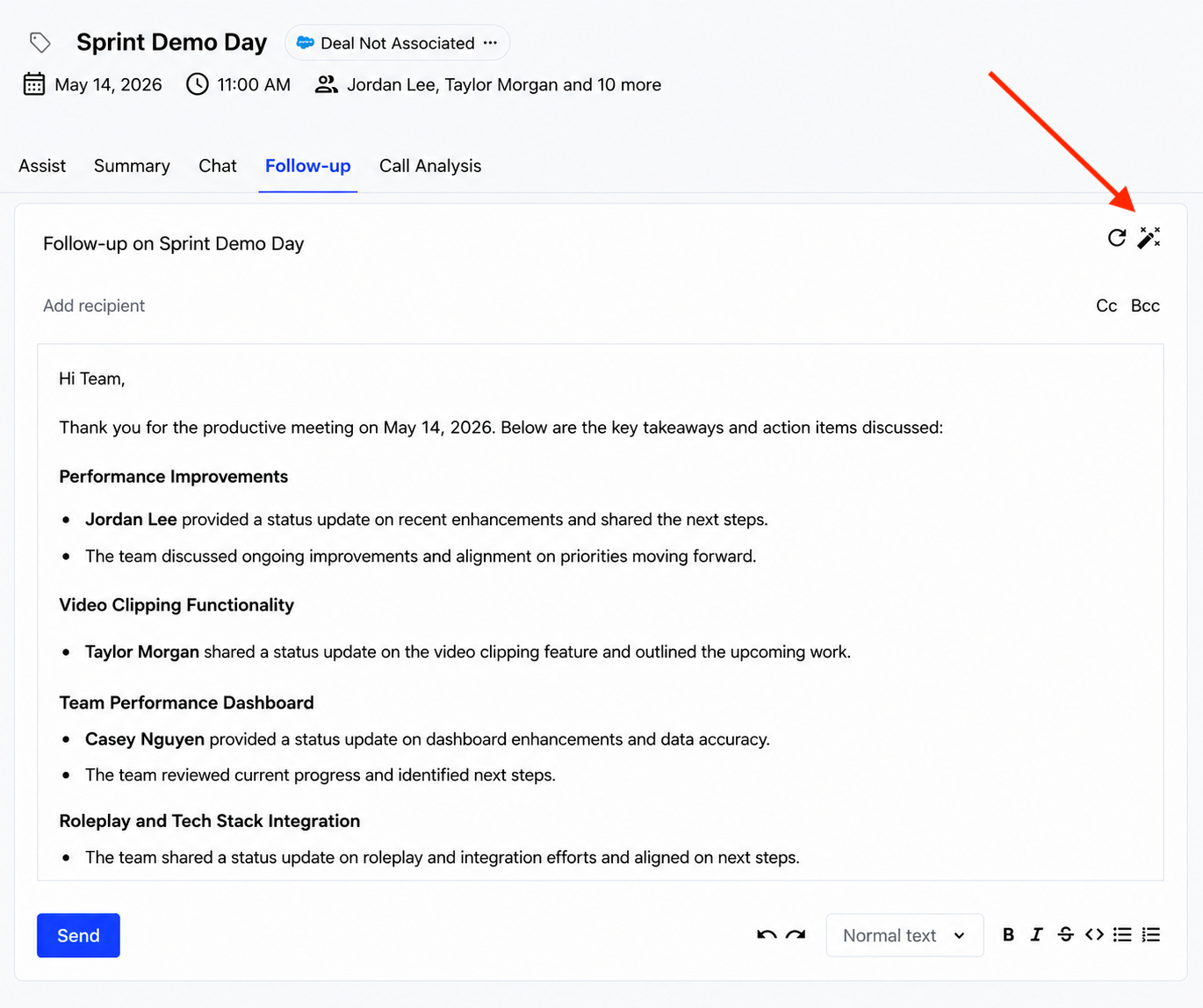
You can now use the Brevian chat experience to iteratively refine follow-up emails without switching tools or pages.
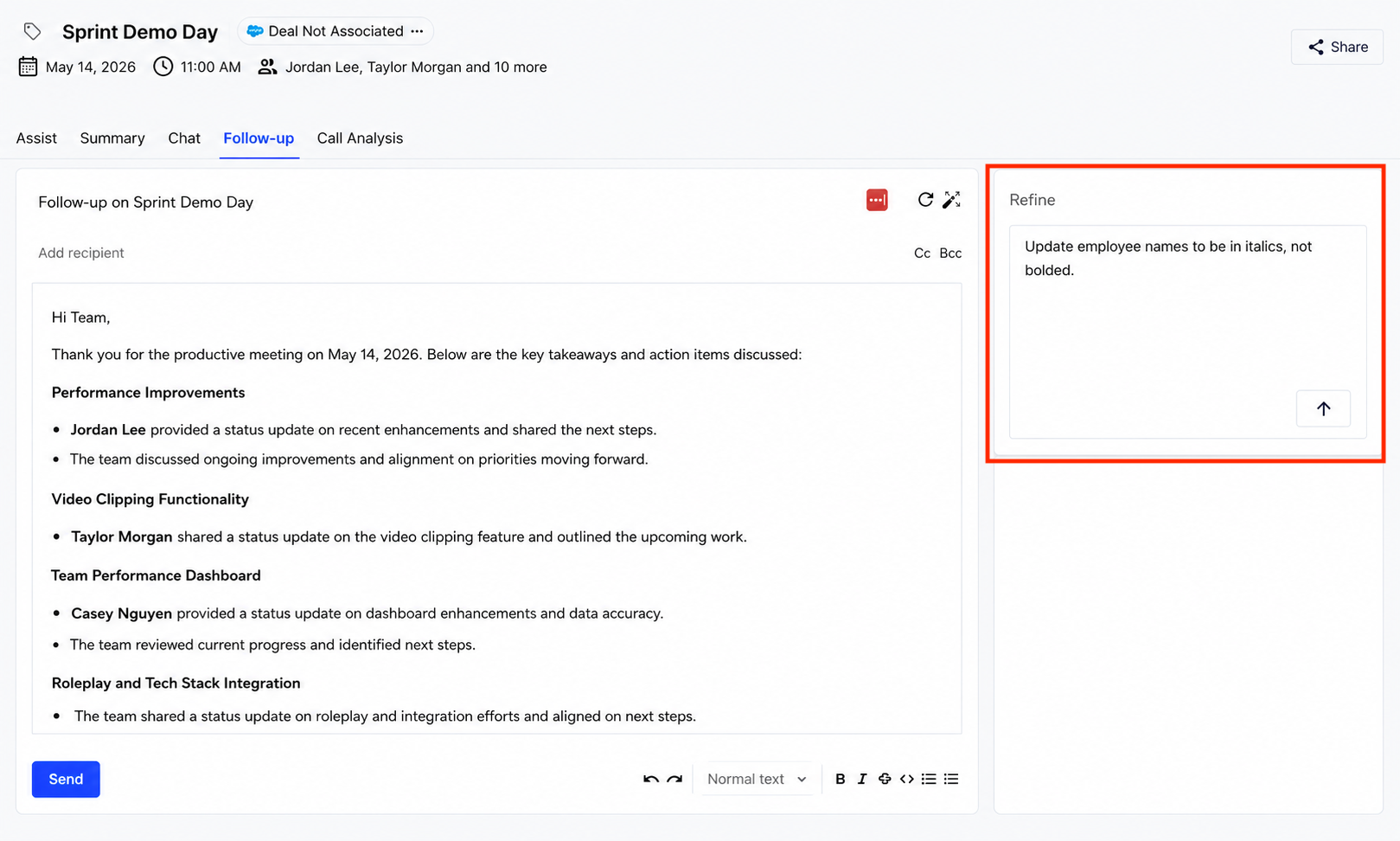
When a follow-up email is generated, Brevian opens a dedicated workspace with chat alongside the email editor, allowing you to request changes conversationally.
With this update:
- Follow-up emails can be refined directly through chat prompts
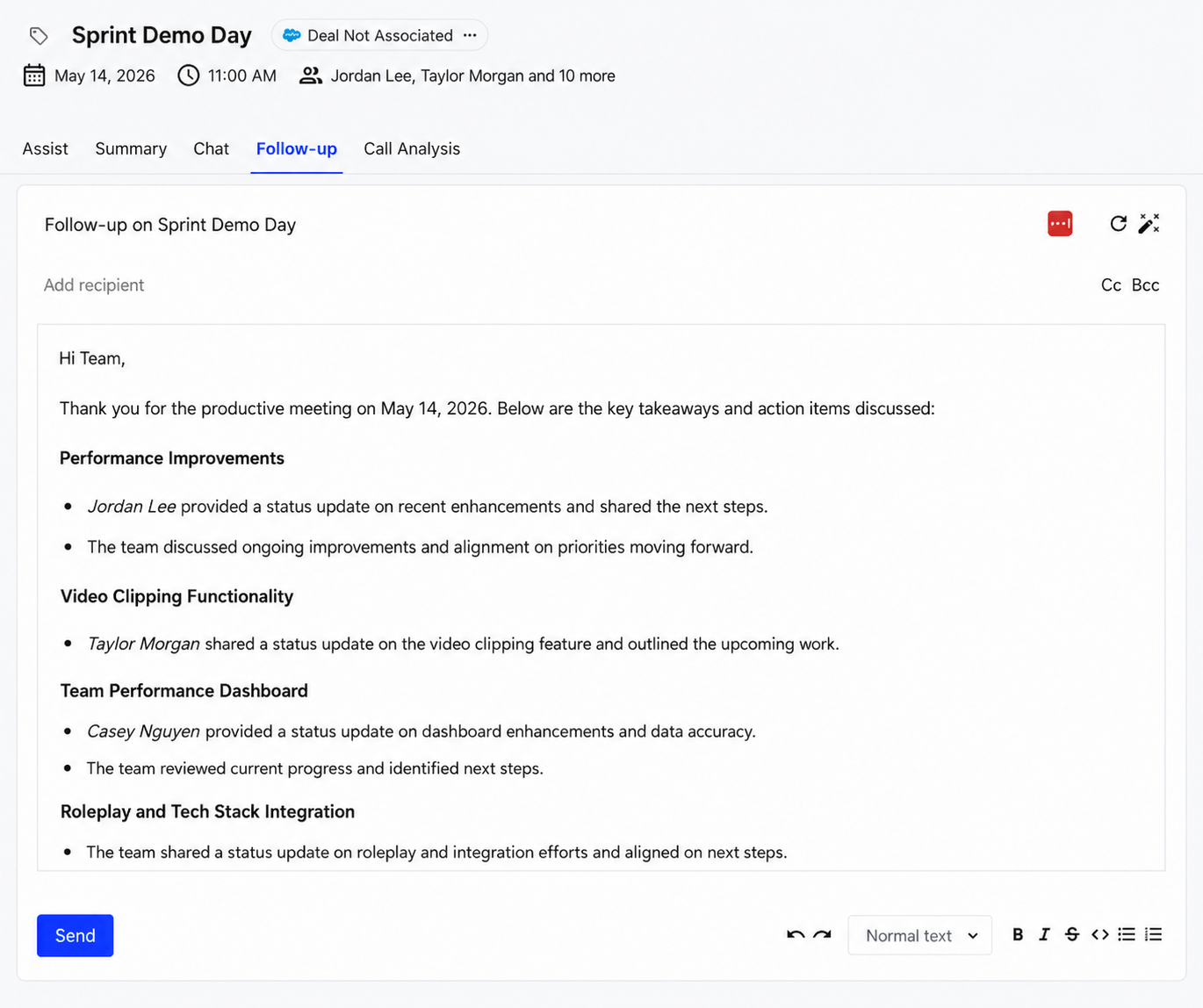
- Requested edits update the draft email without refreshing the page
- AI-generated emails can be reviewed, edited, and sent from a dedicated workspace
- Suggested subject lines and collateral display have been improved
Step 1: In the Follow-up tab, select the chat editor icon:
Step 2: Enter new instructions:
Step 3: See changes directly in the editor:
New shared meeting clips and transcript sharing
You can now create and share focused clips from meetings, making it easier to highlight important moments without sending the entire recording.
To complement this release, we've also improved how meeting transcripts, speaker timelines, and video playback stay synchronized across meeting recordings and shared clips.
With this update:
- Specific portions of meetings can now be shared as standalone clips
- Clips can be created directly from summaries and action items, helping teams quickly share important discussion moments
- Transcript excerpts copied from clips now stay aligned with the correct playback timestamps
- Shared clips and transcript interactions behave more consistently during playback and navigation
Step 1: In the meeting details page, select Share:
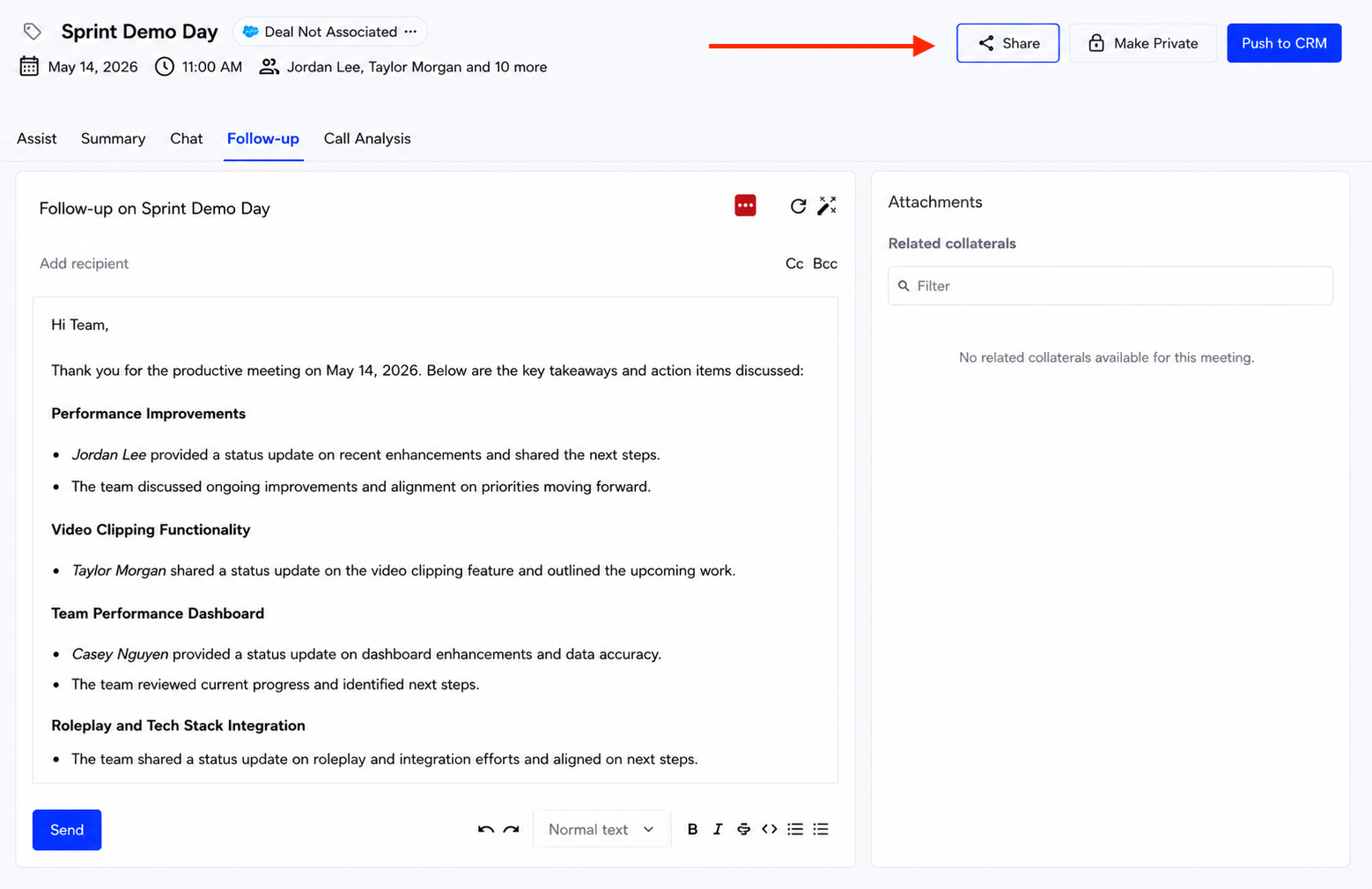
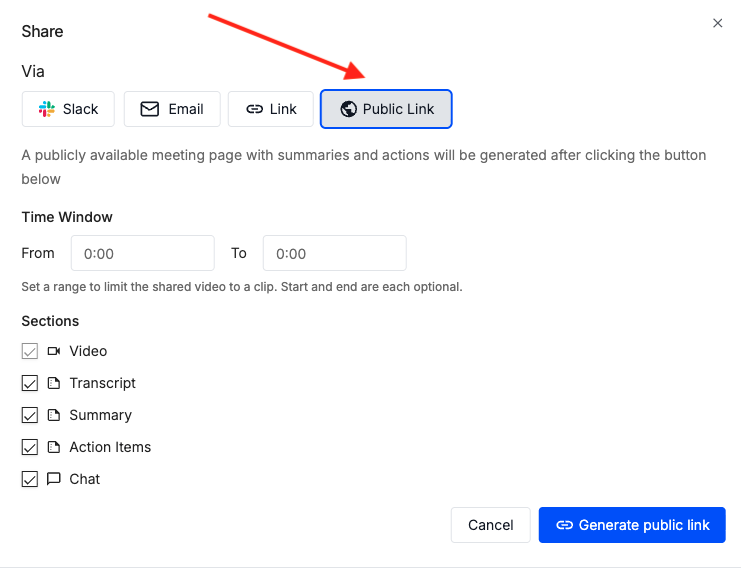
Step 2: Select Public Link, and then make your configurations for the clip you want to share:
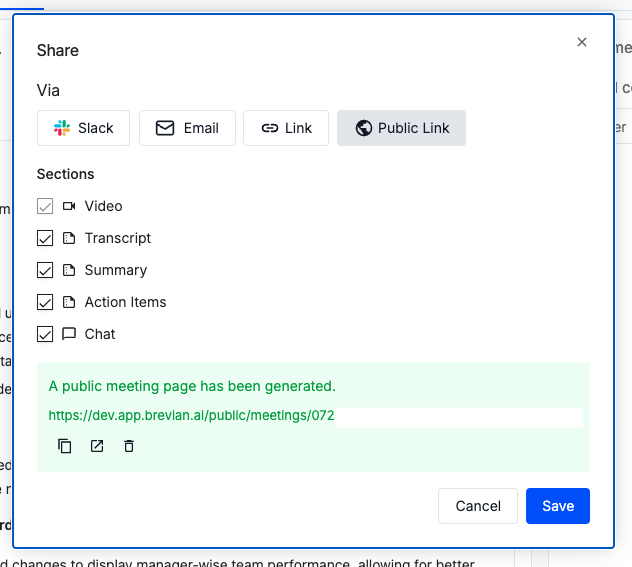
Step 3: Obtain the meeting link to share:
Organize chats with folders
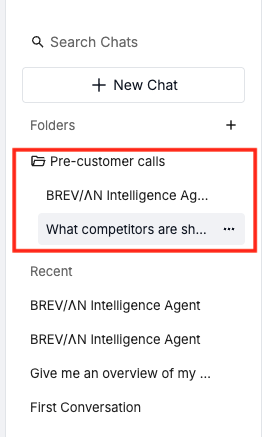
You can now organize chat conversations into folders directly within the Brevian chat sidebar, making it easier to manage ongoing discussions and keep related chats together.
With this update:
- You can create folders to group related chat conversations
- You can rename or remove folders as needed
- You can move chats into different folders directly from the sidebar
- Search results now display folder associations for easier navigation
- Newly created folders include a dedicated workspace that surfaces recent chats within that folder
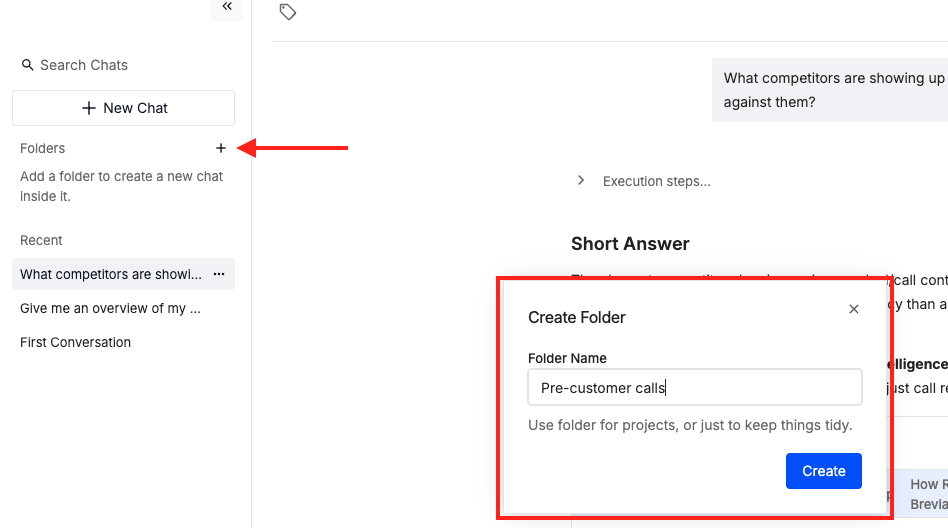
Step 1: In the Analyst page, select the plus icon next to Folders, and then enter a name for the folder:
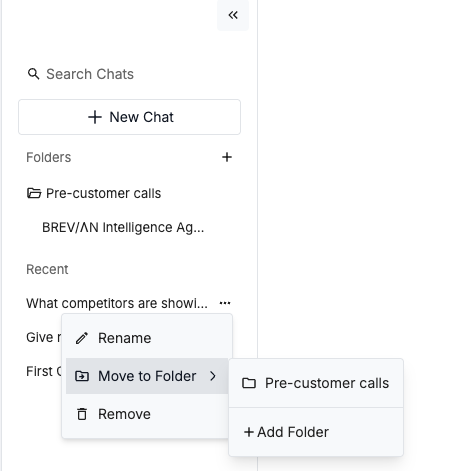
Step 2: For the desired conversation, select the ellipses, select Move to Folder, and then select the newly created folder:
Step 3: Access the conversation from the folder:
Additional release items
- Improved inline citations throughout chat responses: Chat responses now display citations inline alongside the relevant content, making it easier to understand where insights and recommendations come from without scrolling to the bottom of a response.
- Improved reliability for MCP authentication and AI responses: We’ve improved the reliability of Brevian’s MCP integration and related AI workflows by refining token handling and fallback behavior behind the scenes.
- Cleaner report exports: Reports now remove citation superscripts when copied or exported, making report content cleaner and easier to reuse in presentations, documents, and external communications.